PRE-RELEASE TESTING
Welcome, tester.
What you need to know to be useful — and to enjoy yourself — while playing pre-release Backchannel.
You’re reading this because someone trusts you with a half-finished version of a game we care about. Thank you. Bugs are inevitable; your reproductions are gold. Your guesses about why something broke are interesting but optional — what we really need is what you saw, what you expected, and how to make it happen again.
Take your time, play how you want to play, and tell us when something feels off.
Start Here — Read These First
Field Manual
How the game works — eight short chapters from lobby setup through victory. Start with Before the Game and The Map; the rest reads fast.
Read the manual →Cartography Manual
Only relevant if you want to author maps. Skim chapter 1 to see whether you want in — the rest is reference material you can pull as needed.
Read the manual →Set Up for Testing
A short pre-flight checklist. Most testers can finish this in five minutes, then forget it ever existed.
Open the personalized link your admin sent
It looks likehttps://backchannel.gg/welcome?t=.... The page reveals your access code and links you straight into the app with the code pre-filled.Sign in with Google
Single sign-in. If you came in through the personalized welcome link, your access code auto-fills and submits after a beat — no copy-paste.Install Backchannel as an app
This is what unlocks turn notifications. On iPhone, this is required — push doesn't work in a Safari tab. On Android it's strongly recommended; on desktop it's optional polish. See platform-specific instructions below ↓Turn on notifications
Backchannel never interrupts you with a permission pop-up — you opt in from a button. On iPhone (installed PWA only), look for the Enable Notifications banner at the top of the home tab and tap Enable. This is required because iOS only honors notification-permission requests triggered by a real user gesture. On Android and desktop, open Profile → Account → Notifications and flip the toggle — the browser's permission prompt follows from there. If you denied permission at some point, the same tile walks you through re-enabling it (or use your browser's "Site settings" / "App permissions" page).Find the bug-report button
It follows you everywhere — top bar on home, top bar in the editor, HUD bar in-game. The icon looks like a small bug. Tapping it opens the report form (more on that below).
Install as PWA
The block below shows the steps for your platform automatically. Desktop visitors see the desktop steps; mobile visitors see iOS or Android instructions based on their device.
On iPhone or iPad (Safari)
- Tap the Share button (square with an upward arrow) at the bottom of the Safari screen.
- Scroll down and tap Add to Home Screen.
- Tap Add in the top-right corner.
- Open Backchannel from your home screen icon — not from Safari.
- Tap Enable on the Enable Notifications banner at the top of the home tab.
Why this matters: iPhone only sends push notifications from installed apps. In a Safari tab you'll receive zero turn notifications.
On Android (Chrome or Edge)
- Open the menu (three dots, top right).
- Tap Install app or Add to Home Screen.
- Confirm the install prompt.
- Open Backchannel from your home screen — not from the browser tab.
- Turn on notifications from Profile → Account → Notifications, then allow the browser prompt.
Why this matters: Notifications work in a Chrome tab, but install delivers turn nudges more reliably and gives Backchannel its own app icon.
On Desktop (Chrome or Edge)
- Open play.backchannel.gg.
- Click the install icon at the right edge of the address bar (a small monitor with a downward arrow), or open the browser menu and choose Install Backchannel.
- Click Install.
- Turn on notifications from Profile → Account → Notifications, then allow the browser prompt.
Desktop install is optional polish — notifications work in a regular browser tab. Install gives you a dedicated launcher icon and a faster cold start.
How to Report a Bug
Bug reports route directly to a Discord forum thread tagged by category. The team triages in-thread, asks follow-up questions if needed, and updates you when the fix lands.
Where the button lives
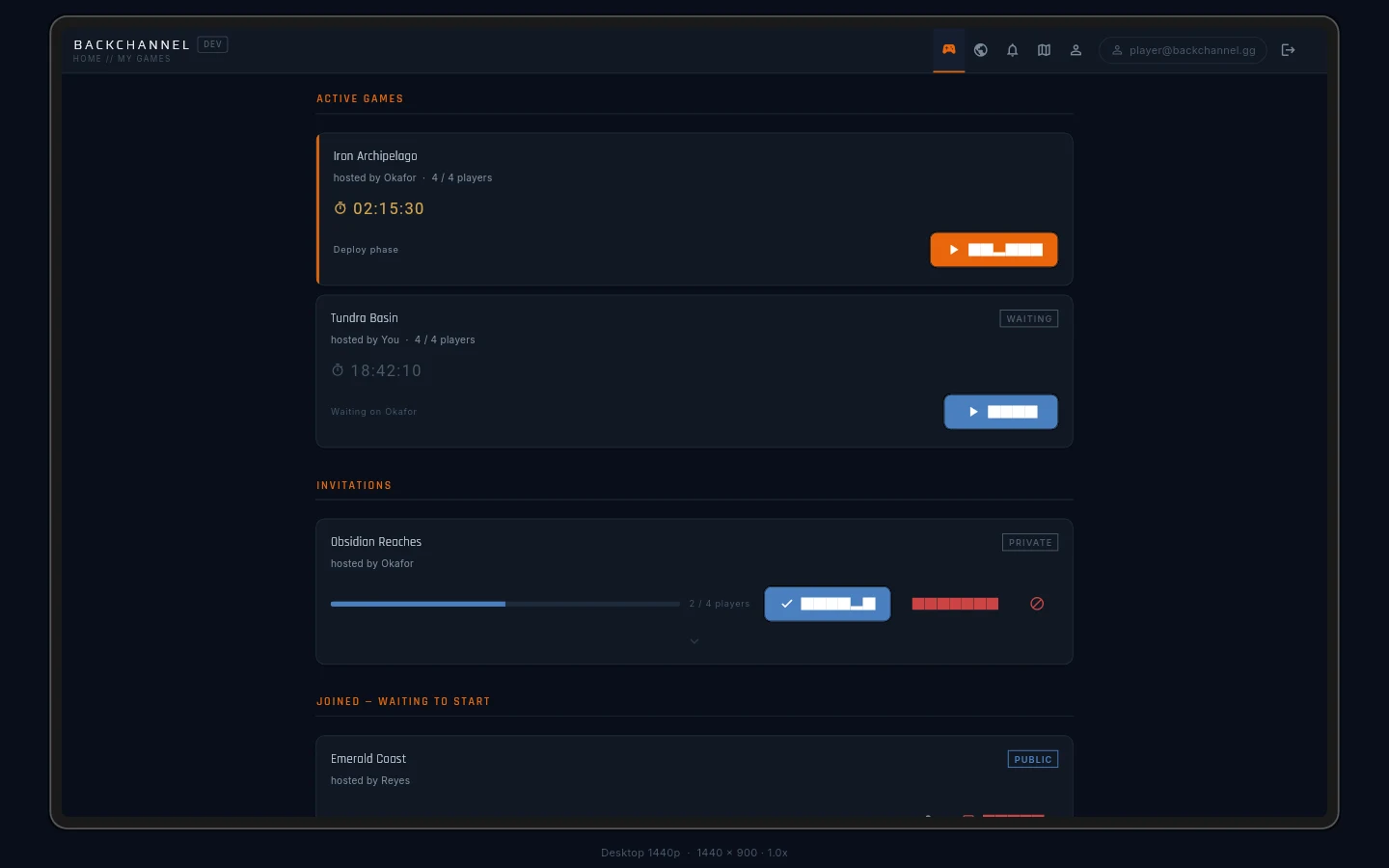
The bug button follows you. It’s in the same spot regardless of where you are in the app — the top bar on home, the top bar in the editor, and the HUD bar in-game. Look for this icon:

The form
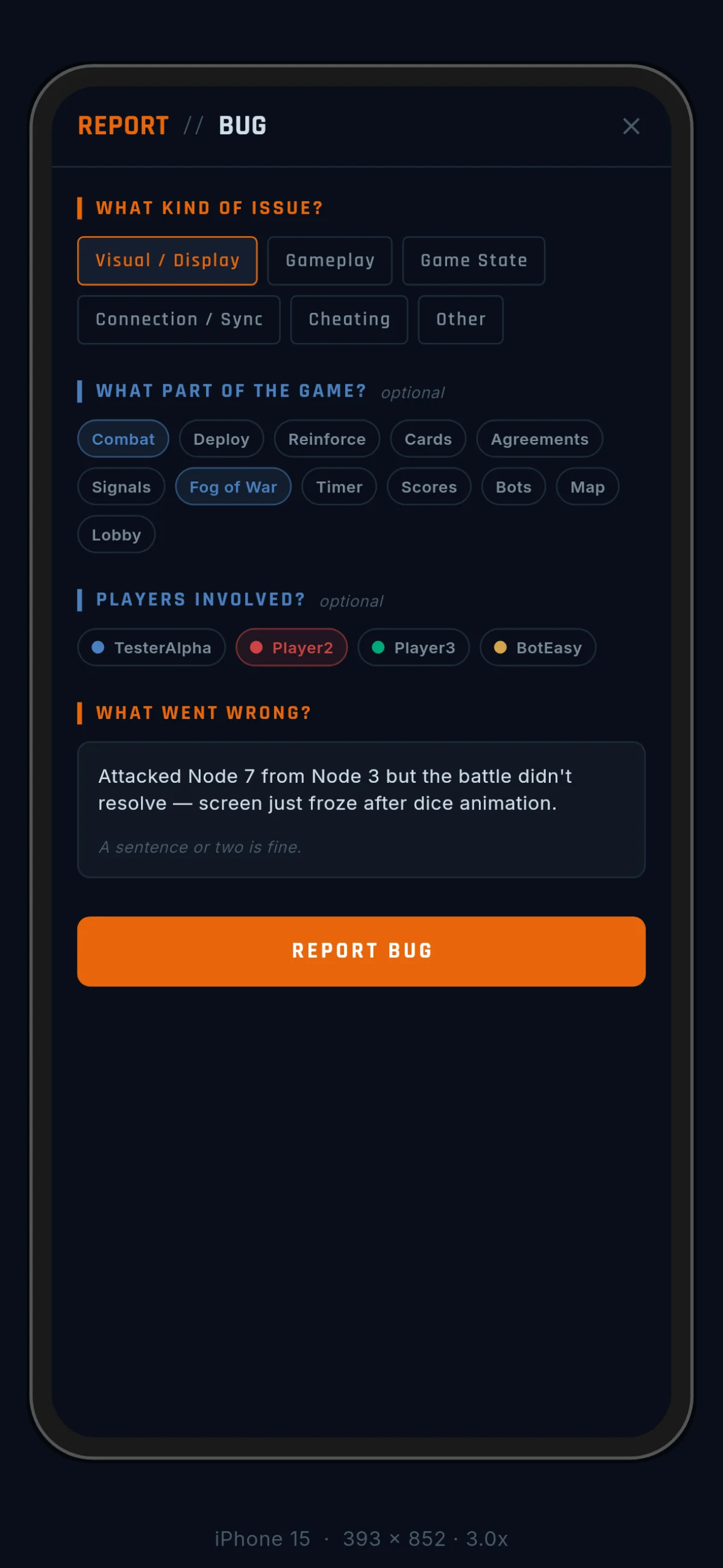
Tap the icon and a form opens. Four fields:
- Category — single-select. Pick the most specific one that applies. This is required and routes the report to the right Discord tag.
- Features — multi-select. Tag every feature your bug touches. Routing-only; no impact on the report content.
- Players — multi-select, in-game only. Tag the players involved so we can pull the right game state.
- Description — free text. Minimum 10 characters, but you’ll usually want more. Spell out what you expected, what happened, and how to make it happen again.
There’s a 30-second debounce after each successful submit, so you can’t accidentally double-fire. If you do hit a second bug right after the first, take a breath and submit it cleanly.
What makes a good report
- Expected vs. actual. “I attacked from A to B and the dice rolled but no troops moved” is more useful than “attack is broken.”
- Repro steps. Walk us back to the moment. “Open game X, take my turn, click attack from A to B” beats “happens sometimes.”
- Tag the players if you’re in-game. We can pull the relevant game state and replay your turn from server logs.
- Pick the most specific category. “Gameplay” beats “Other”; “Connection/Sync” beats “Gameplay” when a stuck spinner is what broke. Then use the feature chips (Combat, Cards, Signals, …) to point at the exact surface.
- One bug per report. If you see two issues, file two reports. They’ll route to different tags and get triaged independently.
What Happens After You Submit
Your report becomes a thread on our Discord forum channel, automatically tagged by the category you picked. Each category maps to a dedicated forum tag — Visual/Display, Gameplay, Game State, Connection/Sync, Editing, Lobby, and so on — and the tag routes the thread to the person who owns that area.
The team reads new threads within a day and replies in-thread. Expect one of three things:
- A clarifying question. “Can you repeat the attack with a different source?” We ask when the repro is ambiguous or when the state you described doesn’t match what we’d expect.
- A confirmation. “Reproduced, filed — thanks.” The bug is logged into our tracker and you’ll see the thread tagged with a status.
- A resolution update. When the fix ships (usually in the next release), we reply to the thread with the version and close it.
If you’ve been added to the Discord (see below), you’ll be mentioned on your own threads and can follow along. If you haven’t, the team still sees and acts on your reports — you just won’t see the replies until you join.
Stay in Touch
Whoever sent you this link also has an invite to the project Discord — ask them for it. The Discord is where playtests are coordinated, where bug discussions happen, and where you’ll get the earliest look at what’s coming next.
If your referrer can’t get you connected, email testers@igelwerks.net and we’ll route you in.