TECHNICAL MANUAL // 08
Validation & Publishing
Validation rules, local saves, and publishing to the server
This chapter covers the SAVE tab: the checks your map must pass, the save model, publishing, and sharing drafts with playtesters.
Validation
Before a map can publish, it has to pass a set of checks. They catch the mistakes that would make a map unplayable, confusing, or (on objective maps) quietly broken mid-game.
Open the Save tab and the checks run on their own. A summary badge shows the verdict: errors (red) block publishing, warnings (amber) advise, all clear (teal) means ready.
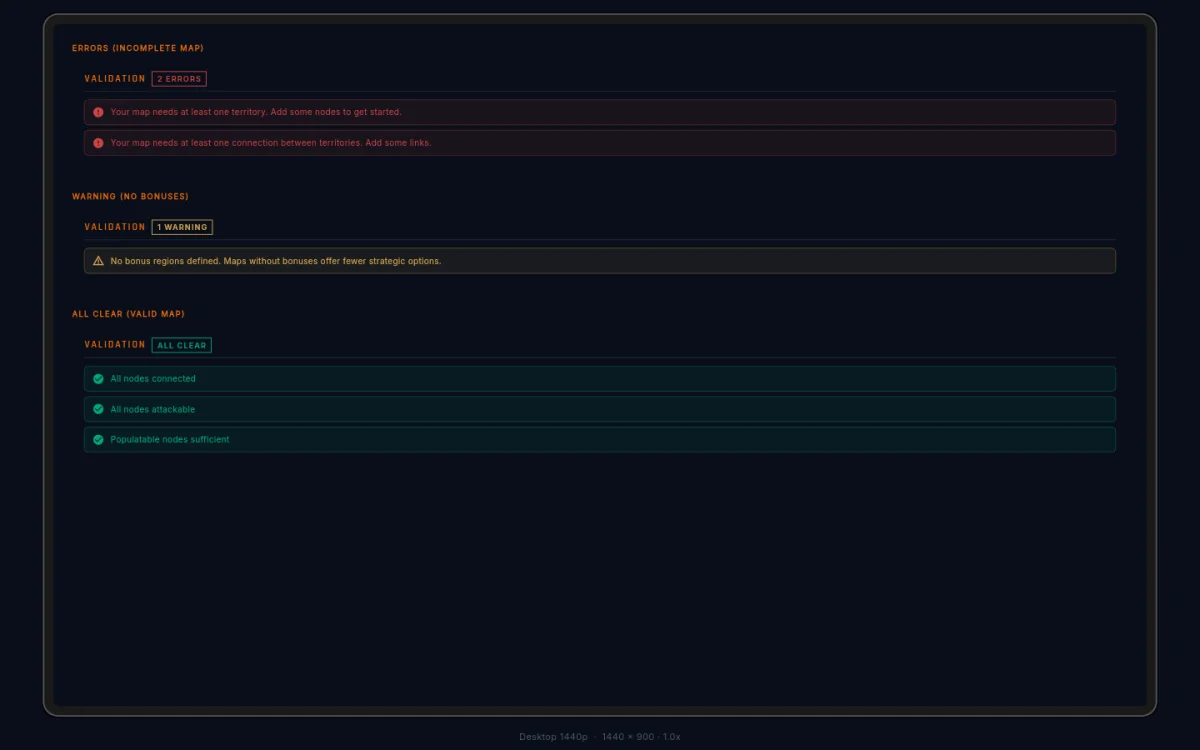
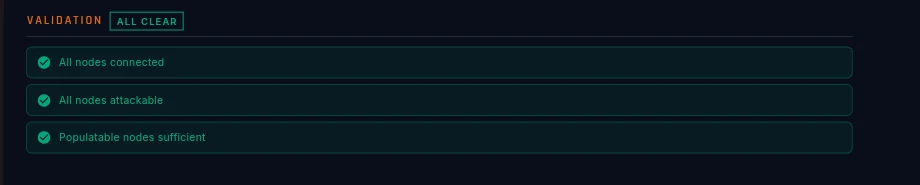
Every finding that concerns one element names it right below the message: “(Node: Saltmarsh)”, “(Bonus group: Crown Region)”. When several elements share a problem, the line collapses — “(Nodes: Alpha, Bravo, +3 more)”. Map-wide problems (name, image, reachability) carry no name because there’s no single thing to point at.
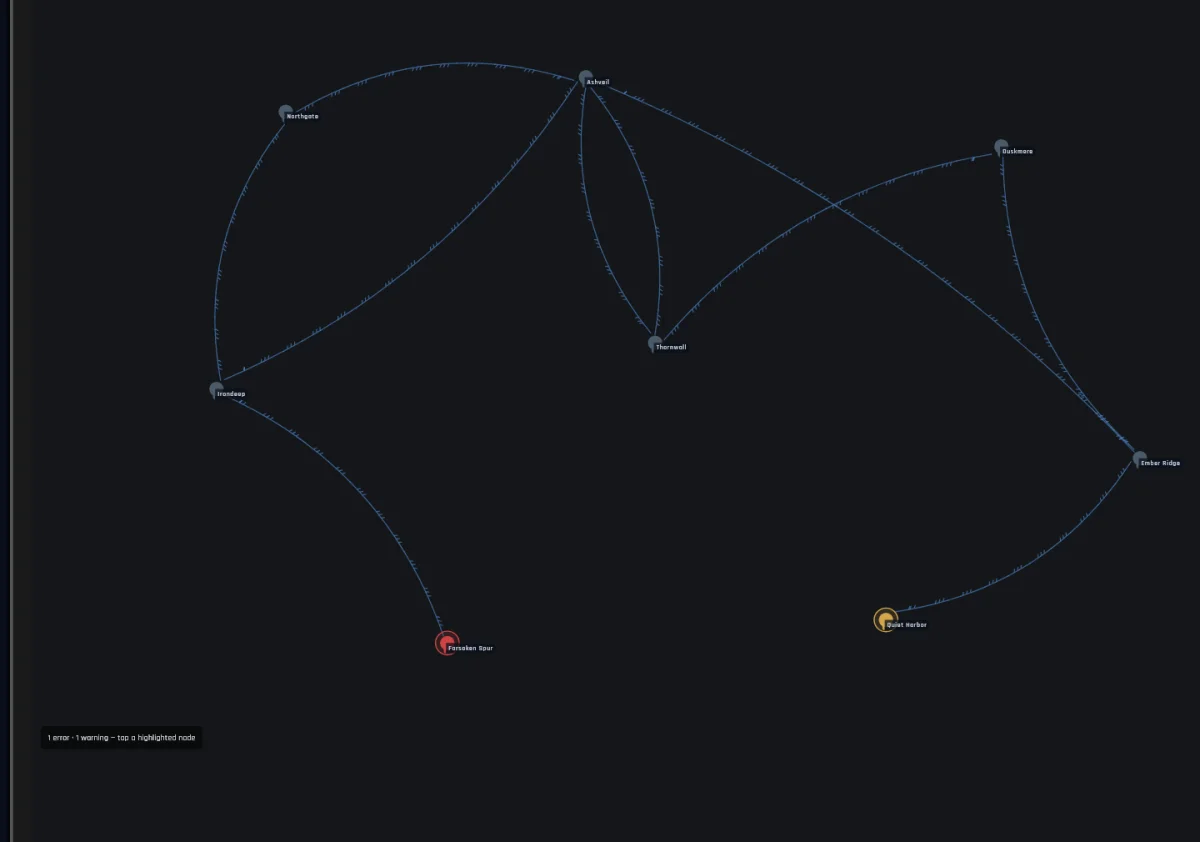
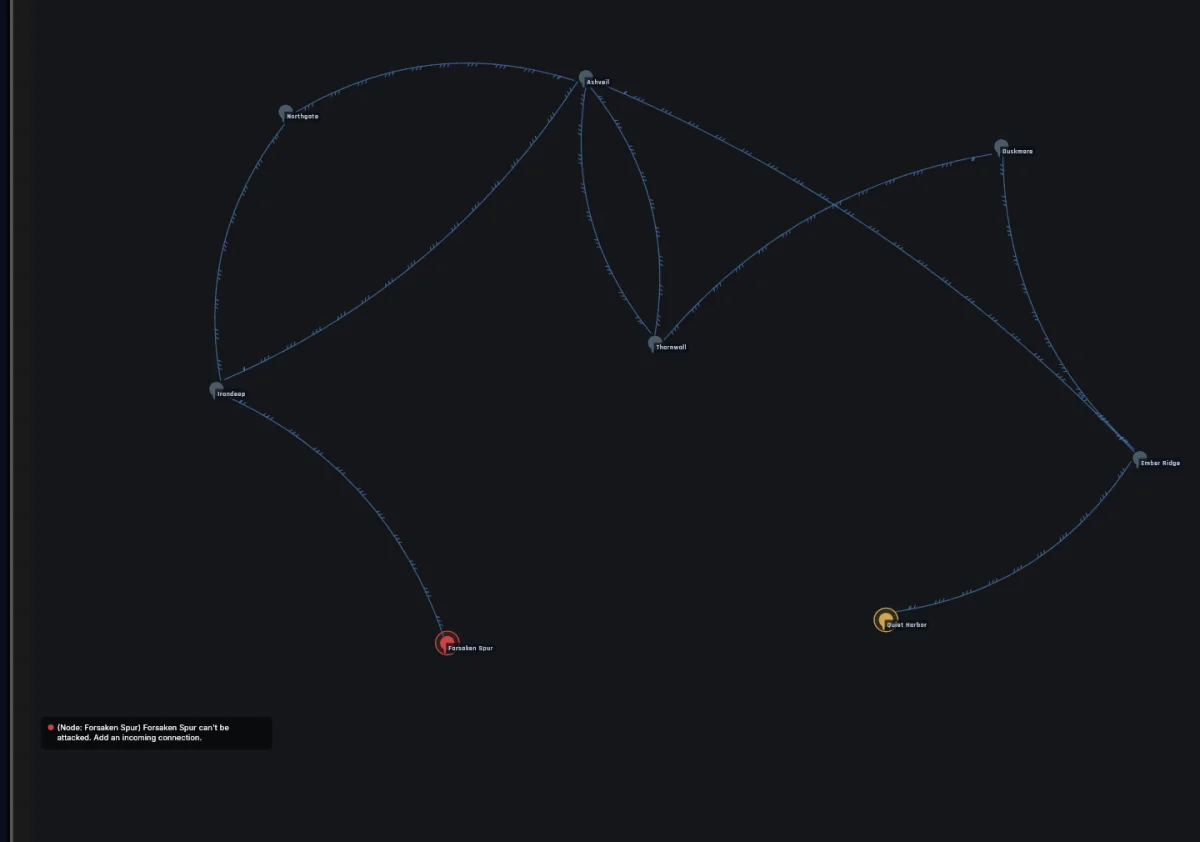
The Save tab also paints problems on the canvas. Every territory named in a finding gets a halo (red for an error, amber for a warning), and clean territories fade back so the problems pop. A corner note counts them (“2 errors · 1 warning — tap a highlighted node”), and tapping a haloed territory lists its findings in place.
Board checks
| Check | Blocks? | Why |
|---|---|---|
| At least one territory | yes | a map needs nodes |
| At least one connection | yes | territories must link |
| No orphaned territories | yes | every node needs a connection |
| Everything reachable | yes | every territory must be reachable from every other |
| Everything attackable | yes | every node needs a connection pointing in — one-way borders can leave a node nobody can attack |
| At least 6 starting-unit territories | yes | at least 6 nodes must allow starting units |
| No dead ends | warns | a node with no way out limits play |
| At least one bonus zone | warns | no bonuses, fewer choices |
Identity checks
The name must run 5–100 characters, the description at most 500, and the image must exist, be PNG/JPEG/WebP, 1080–3840 pixels per side, and 10 MB or less. All blocking.
Payout shape checks
| Check | Blocks? |
|---|---|
| One payout shape per zone, never both a threshold and a scaled share | yes |
| The threshold sits between 1 and the zone’s territory count | yes |
| A scaled zone has at least 2 territories | yes |
| The counts-as-held ratio is above 0 and at most 1 (scaled zones only) | yes |
| A threshold equal to the territory count (same as All nodes — unset it for clarity) | warns |
Objective checks
If your map authors Bonus Groups, Constellations, or Victory Categories, a third family kicks in. Every one of these blocks — a half-wired objective either breaks mid-game or silently never fires, and both waste your playtesters’ time.
Bonus Groups. The group needs a name and must pay at least one reward. Its requirement must be well-formed: nested at most 8 levels, at most 32 conditions, every condition naming at least one bonus, counts of at least 1, and every named bonus or type actually on the map. An “All of” or “Any of” with nothing inside it fails. The messages use the editor’s own words — “Requirement is nested too deep”, “A Count from set requirement needs at least one bonus.”
Constellations. Each needs a name, must point at a Bonus Group that exists, and needs Hold Turns of at least 1 (zero would complete the moment a player qualifies). If it overrides the pressure point (the early-warning setting on the Constellation), the override must fall between 1 and Hold Turns. If it names a category, the category must exist.
Victory Categories. Each needs a name. The Categories Needed to Win number must run from 1 to the number of categories you defined; the Constellations Needed number from 1 to the number of Constellations. And a map sets one of the two, never both: Constellations Needed makes a Tier-1 map, Categories Needed a Tier-2 map.
The two checks authors hit most: setting both win numbers (usually a leftover from converting a Tier-1 map to Tier-2 — clear the old one), and the privacy guard (usually from making a group private while a public Constellation still points at it).
Saving — browser, server, disk
The Save tab’s button stack carries six verbs:
- Save Locally — writes to your browser’s storage. Nothing leaves your device; the project survives closing the tab.
- Save to Server — uploads your work as an unpublished draft. “Saved to server.” confirms. Each save updates your draft; the live version is untouched until you publish.
- Download Map — saves the map as a file, for backup or sharing with a collaborator.
- Load — opens a downloaded map file.
- Discard Draft — throws away the server draft on a published map and falls back to the live version.
- Exit Editor — leaves. If work hasn’t reached the server, the exit dialog offers Save to Server & Leave so nothing is lost.
A status badge at the top tracks where you stand: PUBLISHED (live, nothing pending), UNPUBLISHED CHANGES (live, with a draft waiting), DRAFT (on the server, never published), UNSAVED TO SERVER (local edits not yet uploaded).
Publishing
Publishing promotes the draft. Save to the server as often as you like; when validation is clean and the draft is ready, Publish Version makes it live, behind a confirmation. A map that’s never been published shows plain Publish, and its first publish puts it in the public map browser.
Players in games on the old version keep playing it; new games use the new one. You never overwrite a live version directly, and Discard Draft is always there if you change your mind.
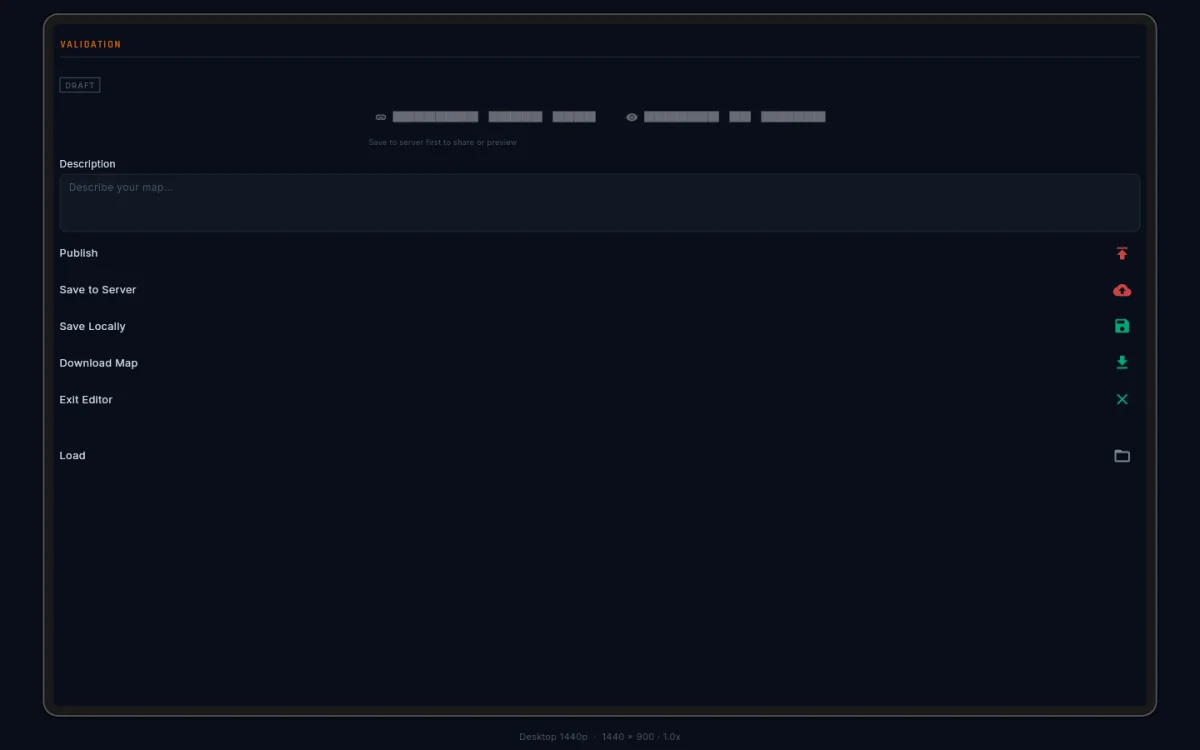
Preview before publishing
The editor never shows you what players see: their default zoom, the panels covering part of the screen, zones and arrows drawn the game’s way. The read-only viewer does. Two buttons sit next to the publish controls:
- Preview in Viewer — opens your current draft in the viewer, in a new tab. Sanity-check your own work between save and publish.
- Generate Share Link — copies a link to your clipboard. Send it to a playtester before you publish.
The share link pins the draft as it stands right now. If you keep editing and saving after sending it, the tester still sees the version you actually sent — send a fresh link when you want fresh eyes on new work. Shared drafts show an UNPUBLISHED badge so the tester knows it’s work in progress.
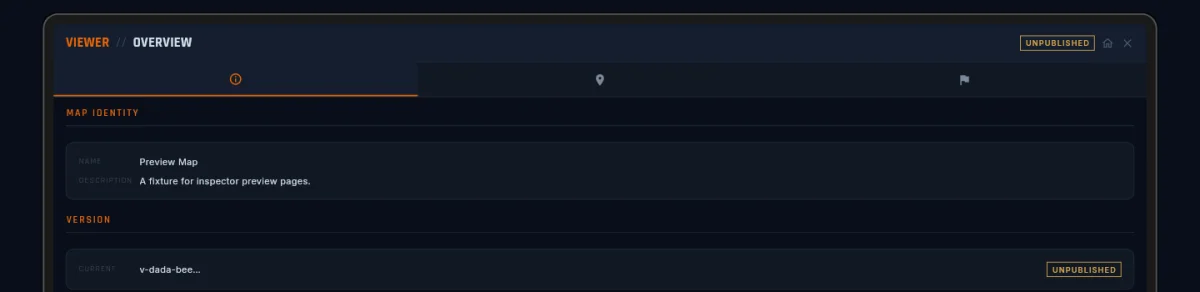
Use it for playtesting
Ask your tester to walk the map in the viewer before sitting down at a lobby, looking for two things:
- Readability — can they tell where the zones are without you explaining? Do the starting areas read as distinct?
- Decisions — do they see choices to weigh, or one obvious move?
Bugs go through the in-app bug-report flow (see the tester landing page); design feedback (“this bonus is too generous”) is better in Discord.
Getting found
When your map publishes, the directory marks whether it carries authored win conditions. Players filter on that mark in the map browser, and the lobby’s map picker shows an objectives badge next to it. The mark is recomputed at each publish from the same data the checks just approved — so if you want your objective work to be discoverable, validate clean and publish.